Auto-fill fields
Some metadata follows directly from another field: the vehicle depends on the compound, and so do the compound class and treatment group. Instead of typing them for every well, or fixing them afterwards with a script, let them fill in automatically.
How it works
- Set the compound on a well, e.g. JQ1.
- Set its vehicle once, e.g. DMSO. The app learns JQ1 → DMSO.
- Every other well that gets JQ1, now or later, gets DMSO automatically.
The built-in Vehicle, Compound class and Treatment group fields already auto-fill from Compound. The ← Compound tag next to them in the Fields panel shows this.
Viewing and editing the mappings
Open the field settings (⚙ next to Vehicle):
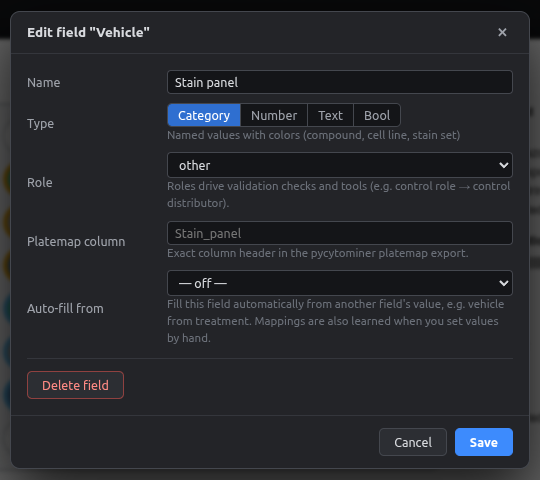
- Auto-fill from can be any category field. Set it to — off — to turn auto-fill off.
- Mappings are learned from values you enter by hand and from imported platemaps.
- To make any custom field auto-fill (e.g. Supplier from Compound, or Passage from Cell line), set Auto-fill from when you create it.
What happens when things change
| Situation | Result |
|---|---|
| You change a well's compound to one with a mapping | Vehicle, class and group update |
| You change it to one without a mapping | Auto-filled values that belonged to the old compound are removed, so nothing stale is left behind |
| You type a vehicle by hand | Your value is used and the mapping is updated |
| You randomize only the compound | Auto-filled fields move with it |
| A compound has no mapping yet | Checks shows "Vehicle unknown for Compound: …" |
Replaces a post-processing script
Instead of keeping a TREATMENT_TO_VEHICLE dictionary in Python and patching CSVs after export, the mapping lives in the project. The exported platemap already has the vehicle column filled in.