Undo & history
Every change you make is saved as a step: entering values, dilutions, randomizing, recoloring, renaming, deleting plates. You can always go back.
Undo and redo
| Keys | Action |
|---|---|
| Ctrl+Z | Undo |
| Ctrl+Shift+Z or Ctrl+Y | Redo |
The ↶ ↷ buttons in the title bar do the same.
The History panel
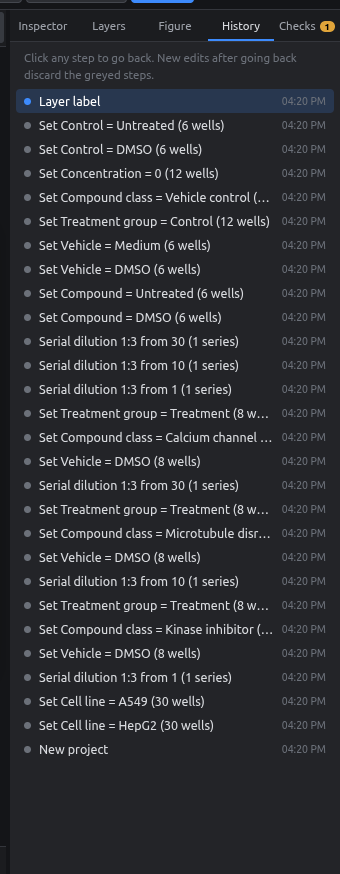
- The newest step is at the top, each with a description and a time.
- Click any step to jump back to that state. The steps after it turn grey.
- Making a new edit after jumping back discards the grey steps, as in Photoshop.
- Seeds used for randomization are recorded in the step name (e.g. Randomize 60 wells (seed 123)), so you can always see how a layout was made.
How far back?
The last 300 steps are kept. Saving a project stores its current state, not the history.
Mistakes that are easy to undo
- Deleting a field or a plate.
- Shrinking a plate format, which removes wells that no longer fit.
- Importing the wrong file.
- Applying a palette.
- Overwriting a whole column of values.