Your first plate map
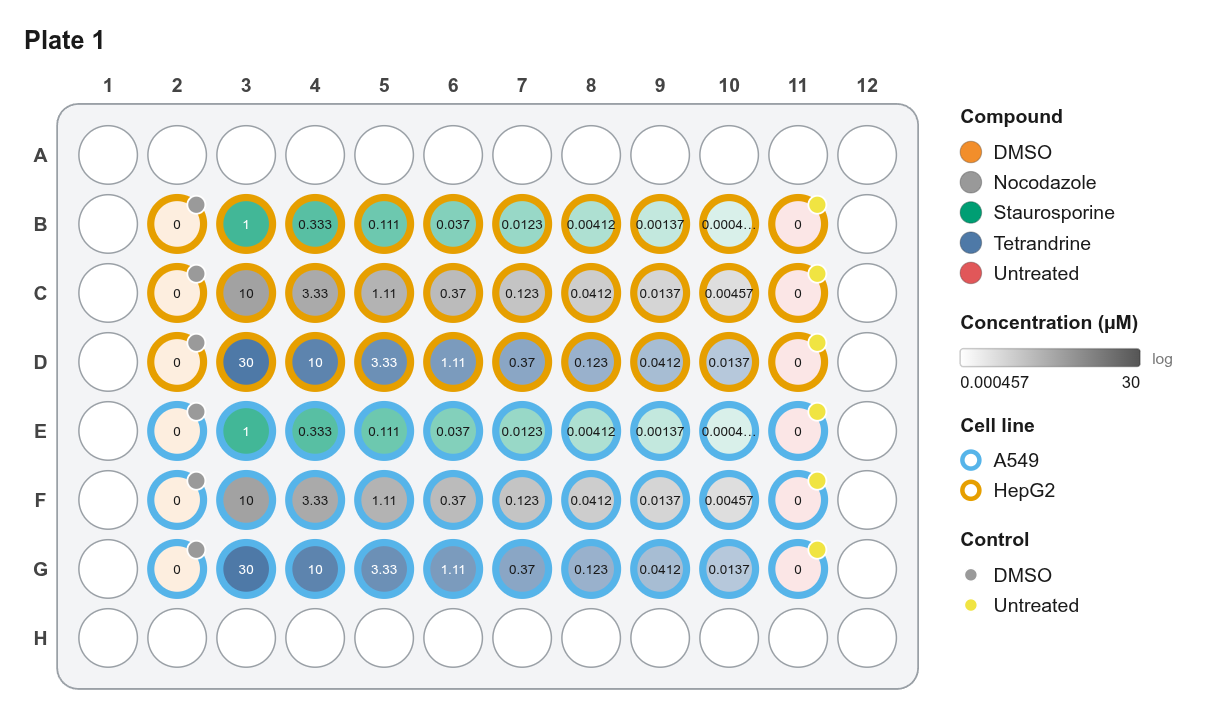
In this 10-minute walkthrough you'll build a 96-well dose-response plate:
- Two cell lines: HepG2 in rows B–D, A549 in rows E–G.
- Three compounds, each as an 8-point 1:3 dilution.
- Controls in columns 2 and 11.
Then you'll export a figure and a platemap CSV.
1. Choose the plate format
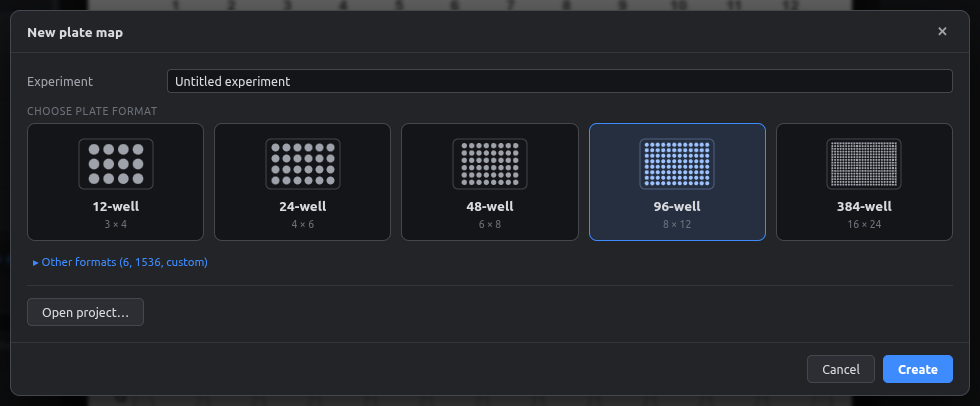
When the app starts, the New plate map screen appears. Type an experiment name, pick 96-well, and click Create.
Opening this screen later
File → New project… (Ctrl+N) brings this screen back.
2. Add the cell lines
- Select rows B–D, columns 2–11: press the mouse on well B2 and drag to D11.
- In the Inspector on the right, type
HepG2in Cell line and press Enter. - Select E2–G11 and enter
A549the same way.
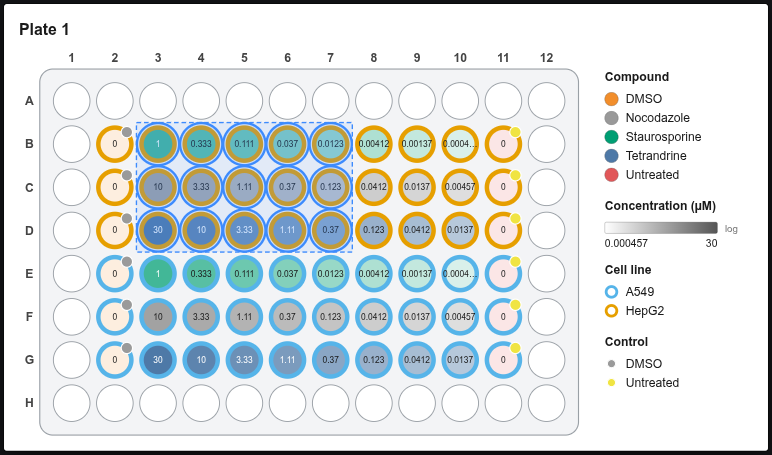
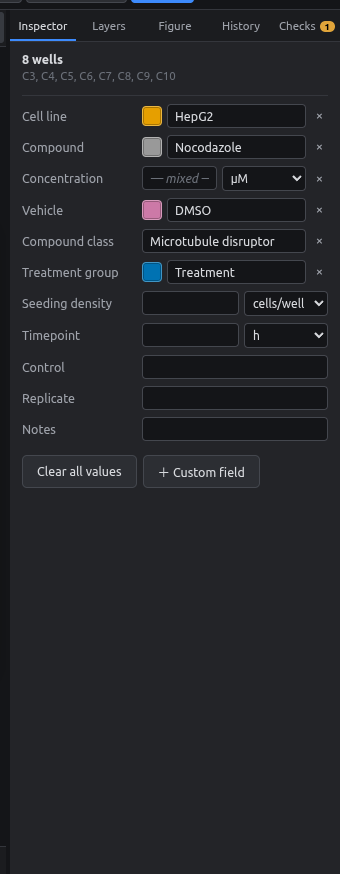
Each new value gets its own color automatically. The cell line shows up as the ring around each well.
3. Add a dilution series
- Select B3–B10 (8 wells).
- Click Serial dilution in the left panel (or Tools → Serial dilution…).
- Set the top dose to
1with unitµM, the factor to1 : 3, and the direction to Across rows →. Under Also set, choose Compound and typeStaurosporine. - Click Apply.
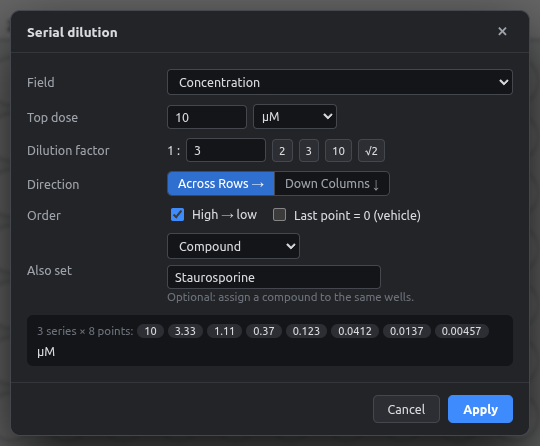
Repeat for rows C and D with other compounds. You can select B3–D10 at once: each selected row becomes its own series.
Vehicle fills in automatically
Once you've set Vehicle = DMSO for one Staurosporine well, every other Staurosporine well gets DMSO too. See Auto-fill fields.
4. Add controls
Select column 2 (B2–G2), type DMSO as Compound and 0 as Concentration. Then do column 11 with Untreated.
To spread controls across the plate automatically instead, see Distributing controls.
5. Check your work
Open the Checks tab on the right. It lists likely mistakes, such as a treated well with no concentration or a plate with no controls. Click an issue to select the wells involved.
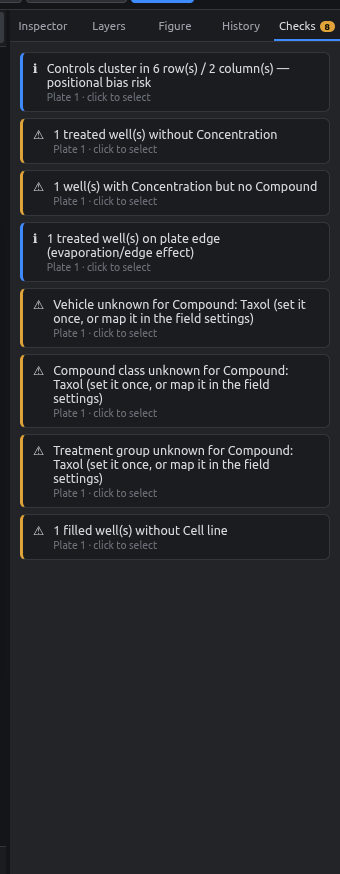
Made a mistake? Press Ctrl+Z, or open the History tab and click the step you want to go back to.
6. Make it look right
- Layers tab: choose what the fill, ring, badge and label show.
- Figure tab: well shape, size, fonts and legend position.
See Layers and Figure style.
7. Export
| You want | Do this |
|---|---|
| A figure for a paper or poster | Export button → PDF, SVG or PNG |
| A platemap for pycytominer | Platemap CSV button → one CSV per plate |
| To keep working later | File → Save project (Ctrl+S) → .platemap file |
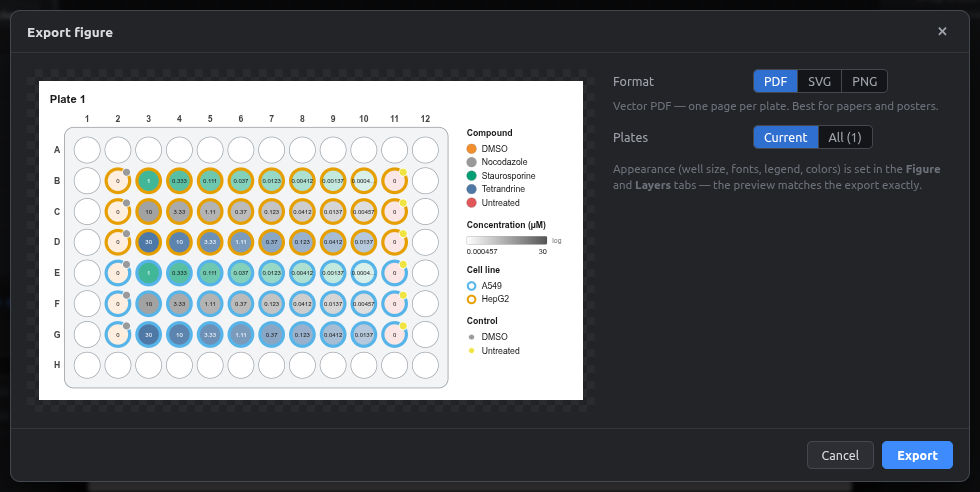
Next: take the interface tour, or go straight to the user guide.