Entering values
There are three ways to put values into wells.
1. The Inspector
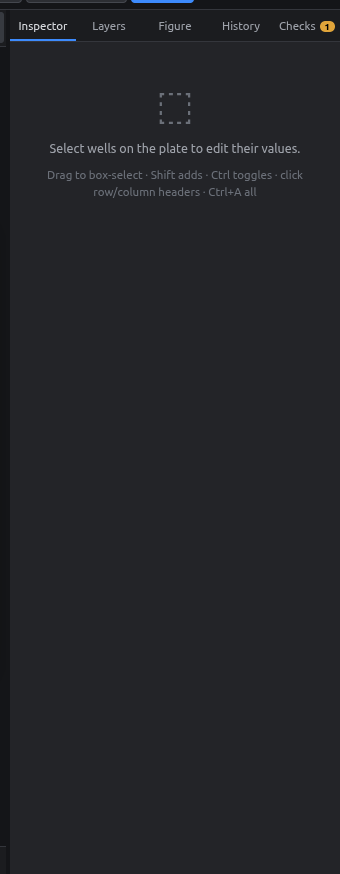
Select wells, then type in the Inspector (right panel) and press Enter.
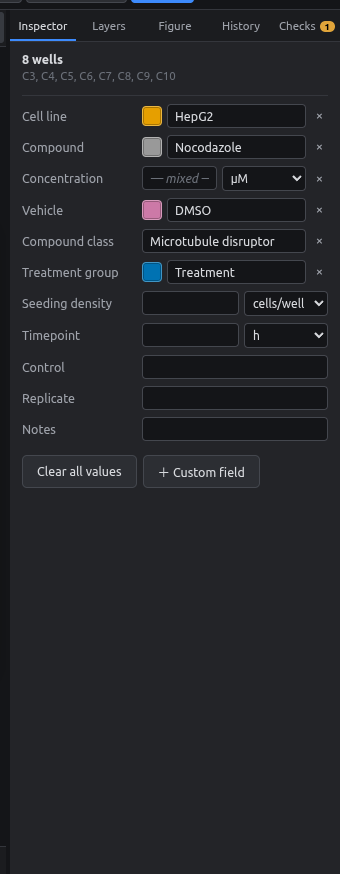
- Category fields (cell line, compound, …) suggest values you've used before as you type. The color swatch next to the box recolors that value everywhere.
- Number fields have a unit dropdown next to the box. Pick nM, µM, ng/ml, … or type the unit with the number (
10 ng/ml). See Units. - × clears that field for the selected wells.
- Clear all values empties the selected wells completely.
- + Custom field adds a new field. See Fields.
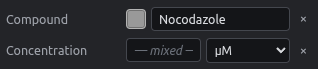
Mixed values are safe
If the selected wells differ, the box shows — mixed —. Nothing changes unless you type something.
2. Brush
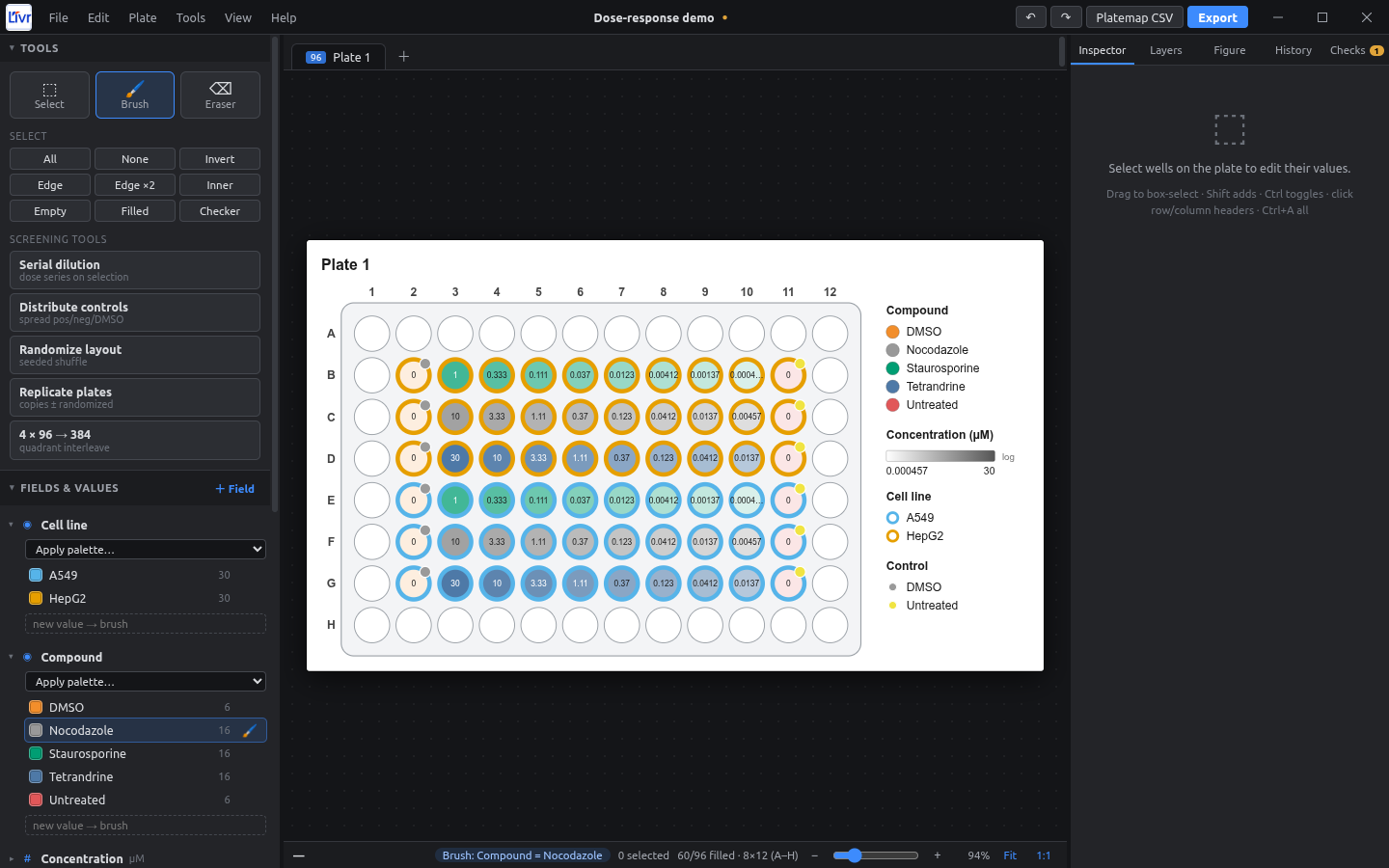
The brush paints one value onto every well you drag over.
- In Fields & values, click 🖌 next to a value. To paint a new value, type it in the dashed new value → brush box. Number fields have a unit dropdown there too.
- Drag over wells. The whole stroke becomes one undo step.
- Press V to go back to selecting.
3. Copy & paste
- Select wells and press Ctrl+C.
- Select the top-left well of the destination and press Ctrl+V.
The pasted block keeps its shape, so a 3 × 8 block pastes as 3 × 8. It also works between plates.
Eraser and clearing
- Eraser (E): drag over wells to empty them.
- Del: empties the selected wells.
- × in the Inspector: clears one field only.
Every one of these can be undone with Ctrl+Z.