The interface
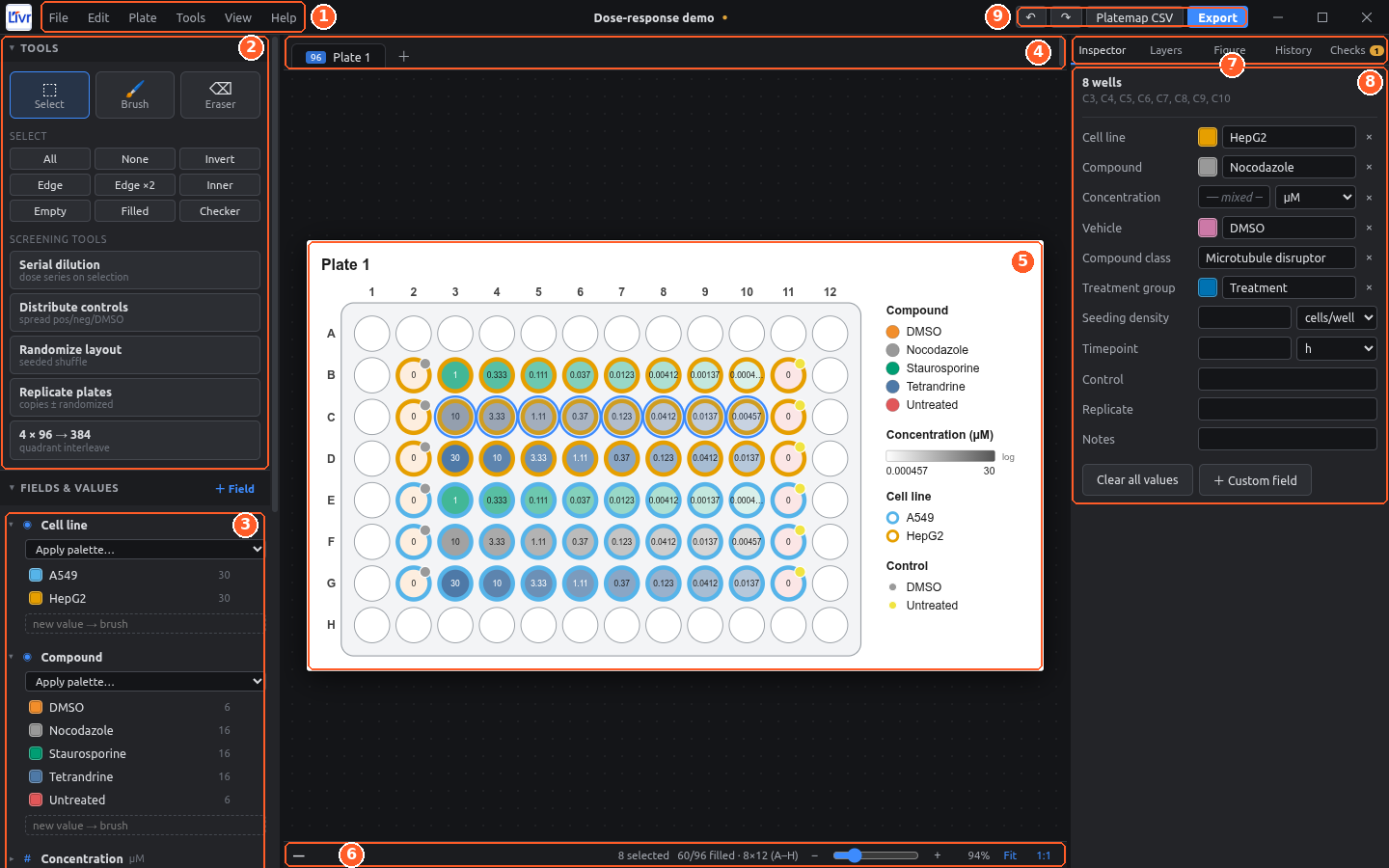
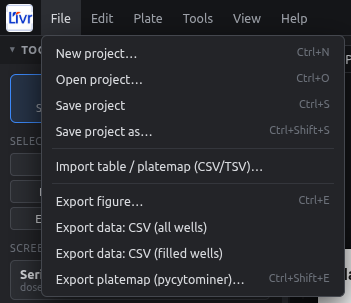
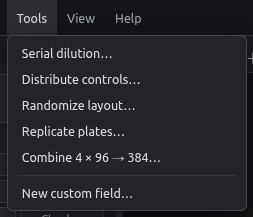
- Menus: File, Edit, Plate, Tools, View, Help.
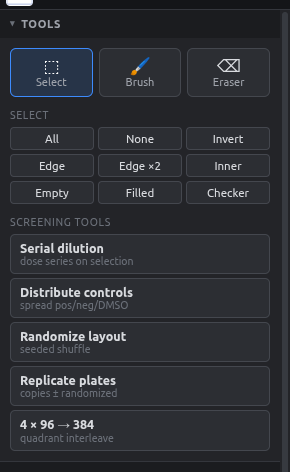
- Tools: Select, Brush and Eraser; quick selections (All, Edge, Inner, Empty, …); the screening wizards.
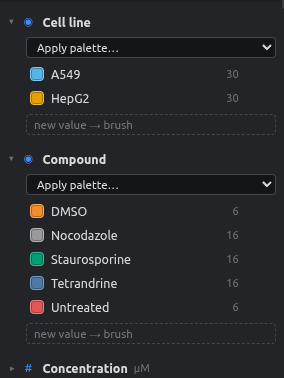
- Fields & values: every field and the values used in it. Click a value to select its wells, 🖌 to paint with it, a swatch to recolor it.
- Plate tabs: one tab per plate. Double-click a tab for its settings, right-click for more, + to add a plate.
- Canvas: the plate itself. Drag to select; zoom with Ctrl + mouse wheel.
- Status bar: the hovered well and its values, the selection count, and zoom controls (Fit, 1:1).
- Right-panel tabs: Inspector, Layers, Figure, History, Checks. A badge shows how many checks need attention.
- Inspector: edit the selected wells. Numbers have a unit dropdown.
- Quick actions: Undo, Redo, Platemap CSV and Export (figure).
Menus
Left panel
Right panel
| Tab | What it's for | Guide |
|---|---|---|
| Inspector | Edit values of the selected wells | Entering values |
| Layers | Choose which field drives color, ring, badge, label… | Layers |
| Figure | Well shape and size, fonts, legend, colors | Figure style |
| History | Every edit; click to go back | Undo & history |
| Checks | Possible mistakes in the layout | Checks |
Status bar

Hover any well to see all its values here. On the right: the number of selected wells, filled/total wells, and zoom controls. Fit sizes the plate to the window and 1:1 shows actual size.
Resizing
- Drag the thin borders between the panels and the canvas to make the side panels wider or narrower.
- Zoom the canvas with Ctrl + mouse wheel, the slider, or Ctrl+= / Ctrl+-.
- Well size for figures is set separately in the Figure tab.