Selecting wells
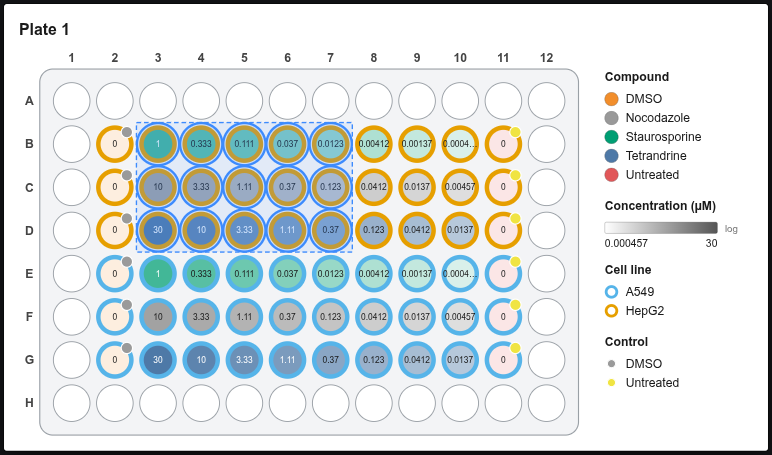
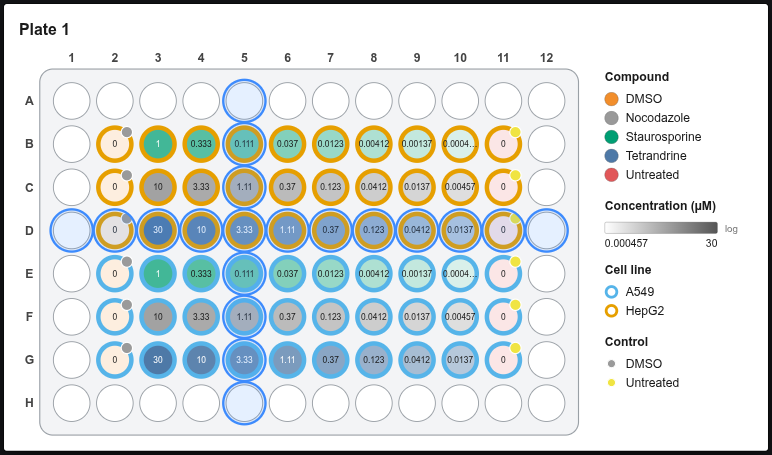
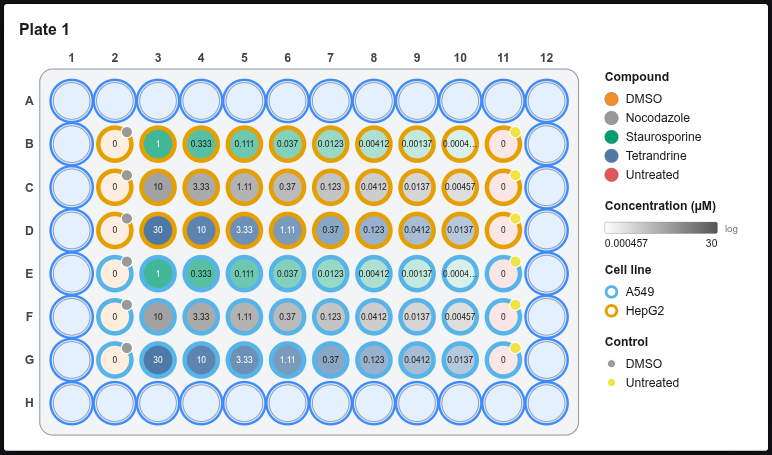
Almost everything works on the selected wells: entering values, dilutions, randomizing, clearing. Selected wells have a blue outline.
With the mouse
| Action | Result |
|---|---|
| Click a well | Select just that well |
| Drag from one well to another | Box-select the rectangle |
| Shift + click / drag | Add to the selection |
| Ctrl + click / drag (Cmd on Mac) | Toggle wells in or out |
| Click a row letter (A, B, …) | Select the whole row; drag over letters for several rows |
| Click a column number | Select the whole column |
| Click the top-left corner | Select every well |
| Click empty canvas | Clear the selection |
Quick selections
The Select buttons in the left panel:
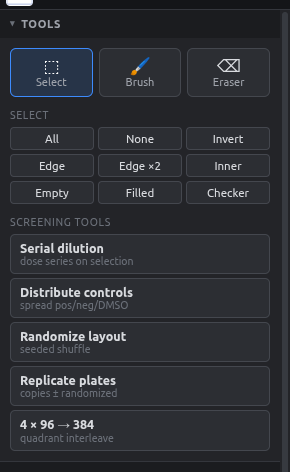
- All / None / Invert
- Edge: the outer ring of wells, which is prone to evaporation
- Edge ×2: the outer two rings
- Inner: everything except the edge
- Empty / Filled: wells without or with any value
- Checker: a checkerboard pattern
Combine them: for example, click Inner and then Invert to get the edge.
Select by value
In Fields & values (left panel), click a value to select every well that has it. Shift-click adds to the selection.
Keyboard
| Keys | Action |
|---|---|
| Ctrl+A | Select all |
| Ctrl+D or Esc | Deselect |
| Del | Clear the selected wells |